
How Does AWS Auto Scaling Work? A Practical Guide to Scalable Cloud Applications
Introduction
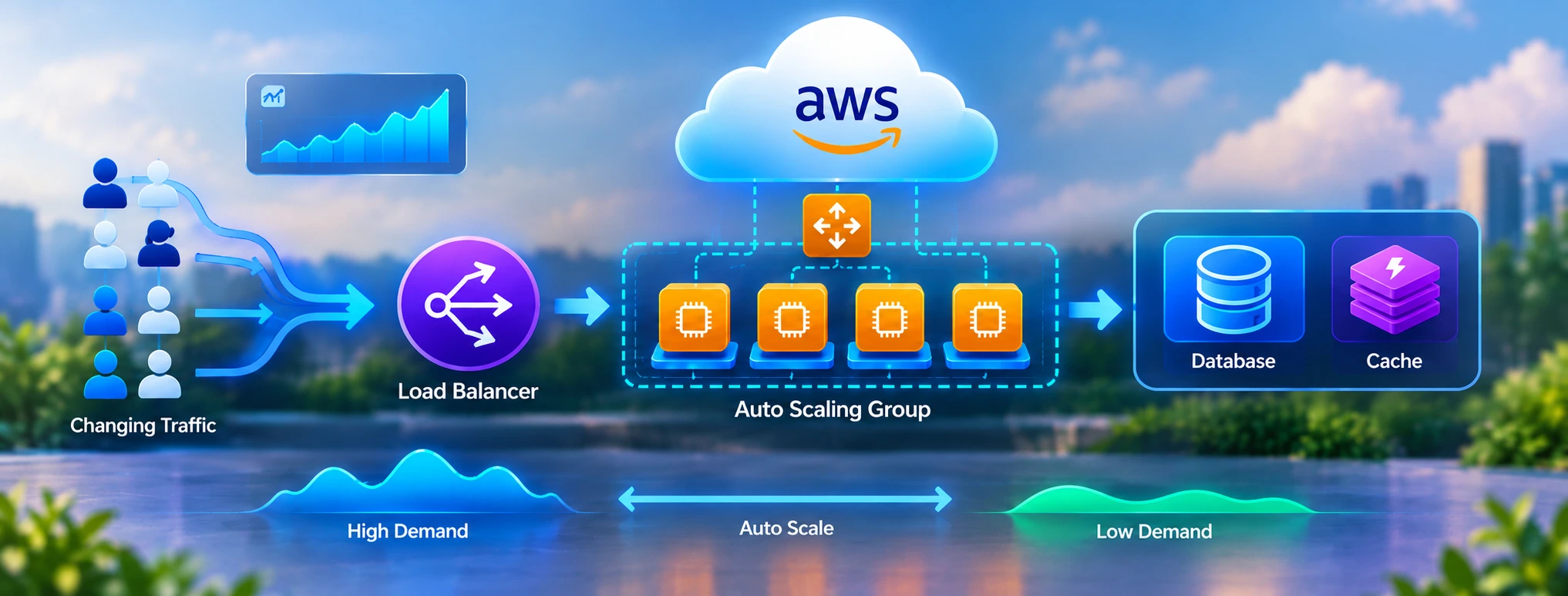
Application traffic can change quickly. A sudden spike can overload servers, while running excess capacity during quiet periods can increase cloud costs.
AWS Auto Scaling helps solve this problem by automatically adjusting resources based on application demand.
In this guide, you'll learn how AWS Auto Scaling works, how it differs from EC2 Auto Scaling, the architecture behind scalable applications, different AWS scaling strategies, real-world use cases, and how to build a scalable cloud application.
Auto Scaling is also a core skill tested in AWS architecture interviews, and one that shapes AWS Solutions Architect salaries in 2026.
Table of Contents
▼What Is AWS Auto Scaling and Why Does It Matter?
AWS Auto Scaling automatically adjusts application resources as demand changes.
For example:
Traffic increases → Add capacity → Handle more requests
Traffic decreases → Remove excess capacity → Reduce resource usage
This is called horizontal scaling, where additional instances or resources are added instead of continuously increasing the size of a single server.
AWS Auto Scaling can help applications:
- Handle traffic spikes
- Maintain performance during higher demand
- Reduce unnecessary capacity during low demand
- Improve cloud scalability
- Reduce the need for manual intervention
The main idea is simple: instead of designing an application around fixed infrastructure, you allow its capacity to change with the workload.
New to cloud concepts in general? Our public cloud vs private cloud beginner's guide is a good starting point before diving deeper into AWS-specific services.
AWS Auto Scaling vs EC2 Auto Scaling: What's the Difference?
These terms are related but have different scopes.
- EC2 Auto Scaling: Manages EC2 Auto Scaling Groups, including instance capacity, health checks, and scaling.
- Application Auto Scaling: Scales supported AWS resources such as ECS services, DynamoDB, Aurora replicas, and Lambda provisioned concurrency.
- AWS Auto Scaling: Provides scaling plans for coordinating supported resources. Its scaling plans primarily create target tracking policies, while EC2 Auto Scaling and service-specific tools provide options such as step and scheduled scaling.
EC2 Auto Scaling = Scaling EC2 instances
Application Auto Scaling = Scaling supported AWS services
AWS Auto Scaling = Higher-level scaling plans across supported resources
| Approach | Best For |
|---|---|
| EC2 Auto Scaling | EC2-based applications |
| Application Auto Scaling | ECS, DynamoDB, Aurora and other supported resources |
| AWS Auto Scaling | Scaling plans across supported resources |
For example, an EC2 web application can use an Auto Scaling Group to add or remove instances based on demand. A container-based application can use ECS Service Auto Scaling to adjust the number of running tasks.
The right approach depends on which AWS services your application uses and how those resources need to scale.
Architecture of Scalable Cloud Applications with AWS Auto Scaling
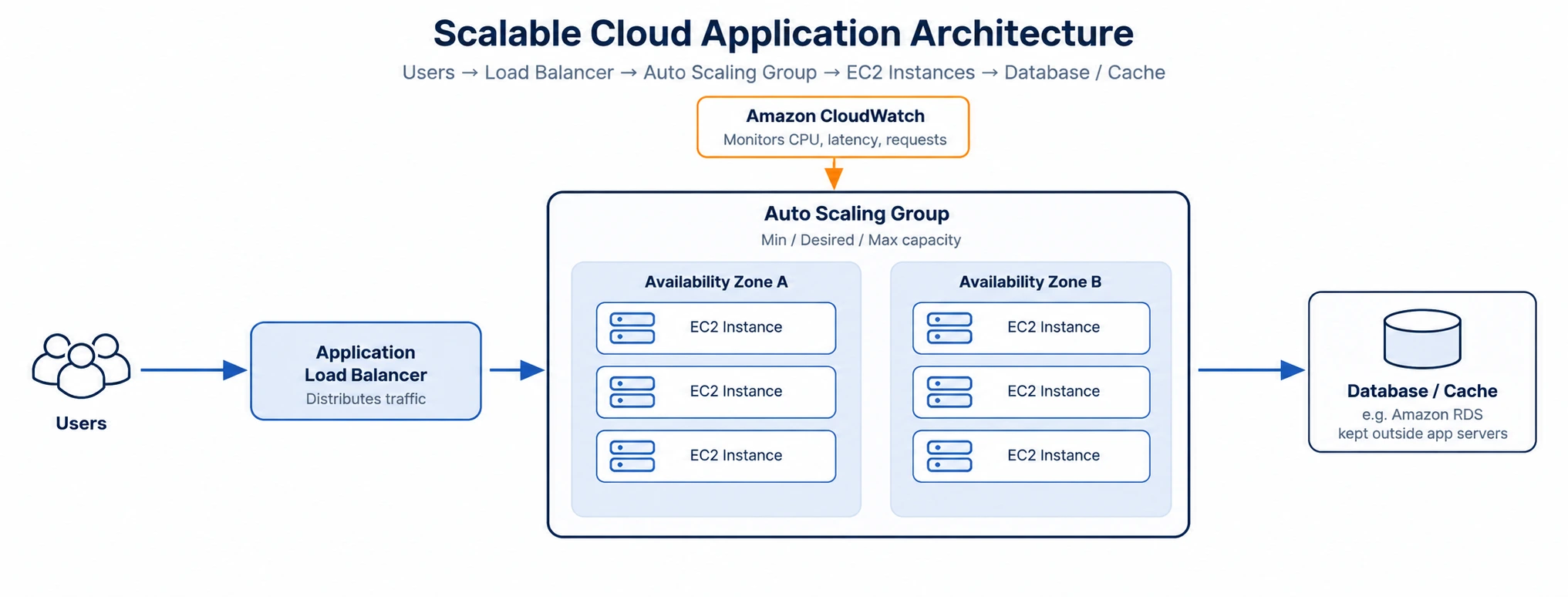
A scalable cloud application uses multiple components to handle changing workloads:
Users → Application Load Balancer → Auto Scaling Group → EC2 Instances → Database/Cache
- Auto Scaling Groups: Manage EC2 instances using minimum, desired, and maximum capacity.
- Launch Templates: Define the configuration for new EC2 instances.
- Application Load Balancer: Distributes traffic across healthy instances.
- Amazon CloudWatch: Monitors metrics such as CPU, requests, latency, and queue depth.
- Scaling Policies: Decide when to add or remove capacity based on workload.
- Multi-AZ Deployment: Runs instances across multiple Availability Zones for better resilience.
Together, these components provide a strong foundation for cloud scalability and efficient AWS scaling.
How Does AWS Auto Scaling Work? A Step-by-Step Explanation
AWS Auto Scaling adjusts capacity based on application demand.
Step 1: Define Capacity
For an EC2 Auto Scaling Group, set the minimum, desired, and maximum number of instances.
Step 2: Monitor Health
EC2 and load balancer health checks identify unhealthy instances so they can be replaced.
Step 3: Monitor Demand
Scaling can use metrics such as CPU, request count, latency, queue depth, or custom CloudWatch metrics.
Note: EC2 memory metrics require the CloudWatch agent.
Step 4: Scale Out
When demand increases, the scaling policy launches additional instances.
Higher demand → Scale out → New instances → Traffic distribution
Step 5: Scale In
When demand falls, Auto Scaling can remove unnecessary instances within the configured limits.
This helps applications maintain capacity while avoiding unnecessary resource usage.

Choosing the Right AWS Scaling Strategy for Your Application
The best scaling strategy depends on your workload and traffic pattern.
- Web Applications: Target tracking or dynamic scaling using CPU or request count.
- Batch Workloads: Scheduled scaling for predictable processing times.
- Recurring Workloads: Predictive scaling based on historical demand.
- Microservices: Scale each service using its own workload metrics.
- Database-Heavy Apps: Scale application and database resources separately.
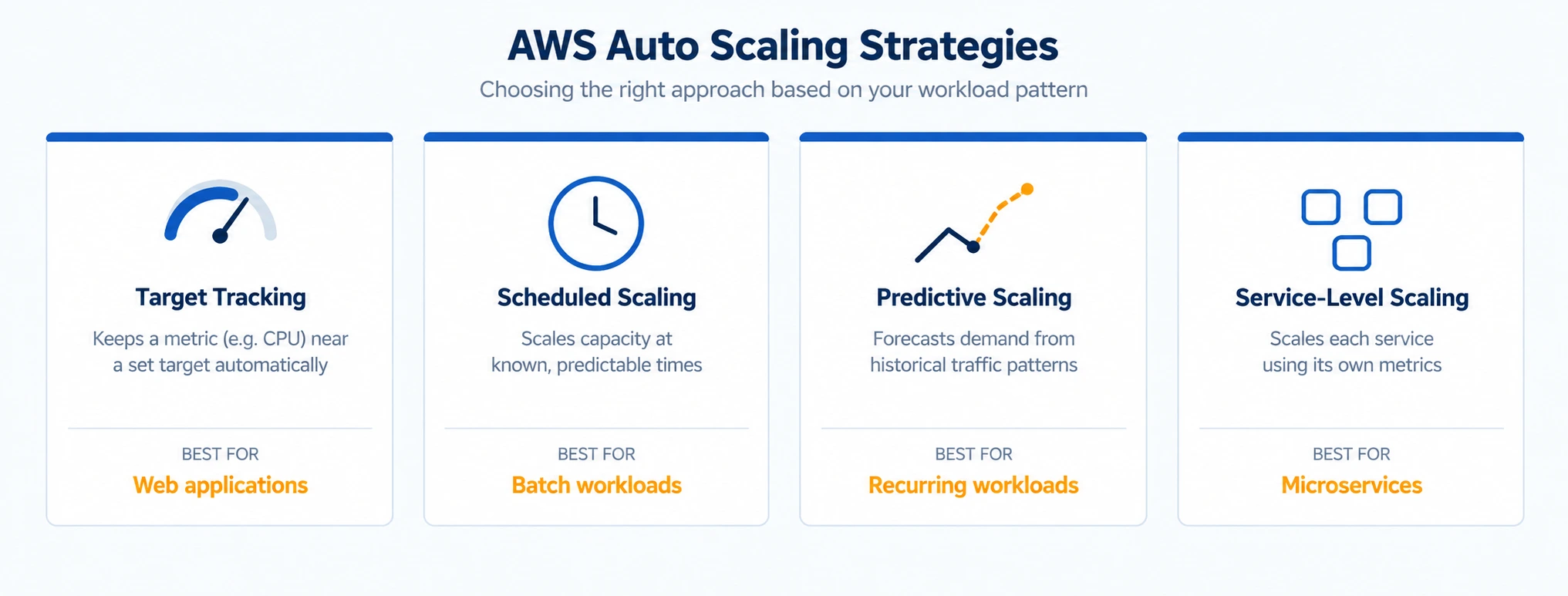
| Workload | Suitable Strategy |
|---|---|
| Web application | Target tracking |
| Batch workload | Scheduled scaling |
| Recurring workload | Predictive scaling |
| Microservices | Service-level scaling |
| Queue-based workload | Dynamic scaling |
EC2 Auto Scaling supports target tracking, step, and scheduled scaling. AWS Auto Scaling scaling plans primarily use target tracking.
For modern container workloads, ECS supports multiple scaling strategies, while EKS managed node groups can use EC2 Auto Scaling Warm Pools for faster scale-out.
Choose the strategy that best matches your application's actual workload.
Real-World AWS Auto Scaling Use Cases
AWS Auto Scaling becomes easier to understand when you look at practical application scenarios.
Example 1: E-Commerce During a Flash Sale
An e-commerce website may normally receive moderate traffic but experience a large increase during a promotional campaign.
Running a very large number of EC2 instances all the time would increase resource usage during normal periods.
Instead, the application can use an Auto Scaling Group behind an Application Load Balancer.
As demand increases, the application can scale out. After the promotion ends and traffic returns to normal, it can scale in.
The exact number of instances depends on the application's performance requirements and testing results.
Example 2: Startup Application
A startup may not know how much traffic its application will receive after launch.
Starting with a modest capacity and configuring automatic scaling can provide a way to respond as usage grows.
For example, a startup might begin with a small Auto Scaling Group and increase its maximum capacity after testing application performance.
The important lesson is that scalability should be considered during architecture design rather than added only after the application starts experiencing traffic problems.
How to Build Your First Scalable Cloud Application
If you want to understand AWS Auto Scaling properly, building a small application is one of the best ways to learn.
Step 1: Design the Application for Scalability
Start with a stateless application architecture where possible.
Avoid storing user sessions only on an individual EC2 instance. Instead, use suitable external services for shared session or application data.
Keep the database outside the application server, such as using Amazon RDS where appropriate.
Place an Application Load Balancer in front of the application.
Step 2: Create an Auto Scaling Group
Create a Launch Template containing your application server configuration.
Then create an Auto Scaling Group and define minimum, desired and maximum capacity.
For example, you could initially test with:
- Minimum: 2 instances
- Desired: 2 instances
- Maximum: 10 instances
These are starting values for a lab environment, not universal production settings.
Step 3: Add a Scaling Policy
Choose a metric that represents your workload.
For a CPU-intensive application, CPU utilization may be suitable.
For a web application, request count per target or application latency may provide a better signal.
A team might initially test a CPU target around 50–60%, then adjust it based on actual application behavior.
Step 4: Monitor the Application
Use CloudWatch to observe what happens when traffic changes.
Look at:
- CPU utilization
- Request count
- Response time
- Instance count
- Application errors
- Scaling activities
Monitoring helps you understand whether the application is scaling too slowly, too aggressively, or at the right time.
Step 5: Test Scaling
Do not assume that scaling works simply because the configuration is active.
Run controlled load tests and observe:
Load increases → Scaling starts → Instances launch → Health checks pass → Traffic is distributed
Then test the opposite direction:
Load decreases → Scale-in starts → Instances are removed → Application continues serving requests
Tools such as JMeter or Apache Bench can be used in suitable test environments.
This hands-on process helps IT professionals understand AWS Auto Scaling, EC2 Auto Scaling, load balancing and cloud scalability as practical skills rather than just theoretical concepts.
These are also the kind of hands-on skills that move Cloud Engineers into higher-paying roles at product companies.
If you prefer guided practice with a trainer, MicroDegree's live instructor-led AWS and DevOps training lets you work through these labs with doubt clarification along the way.
Conclusion
AWS Auto Scaling helps applications automatically adjust capacity as demand changes. With EC2 Auto Scaling, load balancing, monitoring, and the right scaling strategy, you can build applications that handle changing workloads more efficiently.
The best way to understand AWS scaling is to build and test a small application, monitor its behavior, and adjust the configuration based on real workload patterns.
Not sure where to begin? Watch a free AWS and DevOps demo class to see how MicroDegree teaches cloud skills before you enrol.
Frequently Asked Questions
Q1: How does AWS Auto Scaling enable scalable cloud applications?▼
AWS Auto Scaling adjusts application resources based on workload and configured scaling policies. This helps applications handle changing traffic without constant manual intervention.
Q2: What is the difference between AWS Auto Scaling and EC2 Auto Scaling?▼
EC2 Auto Scaling focuses on automatically managing EC2 instances. AWS Auto Scaling provides a broader approach for scaling supported AWS resources and services.
Q3: Can AWS Auto Scaling handle sudden traffic spikes?▼
Yes, it can automatically add capacity when configured metrics indicate increased demand. The actual response depends on scaling policies and how quickly new resources become ready.
Q4: What metrics should I use for application scaling?▼
Common metrics include CPU utilization, request count, latency, and queue depth. The best metric depends on what most closely represents your application’s workload.
Q5: Does AWS Auto Scaling reduce application costs?▼
It can reduce unnecessary resource usage by scaling in when demand decreases. Actual savings depend on your workload, resources, and scaling configuration.