
IT Automation Without Coding: Tools Every System Administrator Should Know
IT automation without coding is possible for a lot of everyday sysadmin work. Think of a Monday morning: three new joiners need accounts, a department wants software installed on 40 laptops, last night's updates have to be checked and every request in the queue still needs an owner. Done by hand, that is hours of clicking. Tools with visual interfaces, ready-made workflows, policies and rules can take over much of it.
You still need to understand users, permissions, devices and security, because a wrong rule applied to every machine is a faster way to cause an outage. This guide matches common admin tasks to the right kind of tool, shows where each tool stops being no-code and says when it's time to start scripting.
Table of Contents
▼What is no-code and low-code IT automation?
No-code automation uses graphical screens, templates, triggers, actions and predefined rules, and you don't write code. Low-code automation also lets you build visually, but you sometimes add an expression, a script, an API setting or other technical configuration to handle a harder case. Most tools in this guide sit across both: the standard tasks are no-code, and the unusual ones push you toward low-code.
| Feature | No-code automation | Low-code automation |
|---|---|---|
| Coding requirement | Usually none | Limited coding may be required |
| Setup | Visual interface and templates | Visual interface plus technical configuration |
| Customisation | Depends on built-in features | More flexible |
| Best suited for | Repetitive, standard tasks | More complex workflows |
As an administrator, use no-code features for the tasks that follow a fixed pattern, such as applying a setting to a group of PCs. Move to low-code when the task needs a condition, a lookup or a connection to another system.

Windows and endpoint automation tools
These tools manage the laptops and desktops your users work on. You set the policy once and the tool applies it to every device in scope. If you're coming from desktop support, our guide to moving from desktop support to Azure administrator covers the role side.
Microsoft Intune
- What it does: Microsoft describes Intune as a cloud-based service to enroll, configure, secure and update devices and to deploy and protect apps. You do it all from a web admin center, and it runs entirely in the cloud.
- Common use cases: enrolling new laptops, pushing an app to a department, applying configuration and compliance policies, keeping updates in line and running remote actions such as a wipe on a lost device.
- How the interface helps: you create a policy in the admin center and assign it to a group of users or devices. Intune applies it when each device checks in.
- No-code or low-code: mostly no-code for portal-based policies. Every admin center action also has a Microsoft Graph API call behind it, which is the route to scripting later.
- Limitations: each managed user or device needs a licence, and a mistaken policy reaches every device in the assigned group. Test on a pilot group first.
Group Policy
- What it does: Group Policy is the Windows infrastructure for managing configuration of users and computers in an Active Directory domain, through the Group Policy Management Console.
- Common use cases: password and security settings, desktop and user settings, restricting software and mapping drives and printers.
- How the interface helps: you pick a policy setting in a console, link it to the right part of the directory and it applies to every computer and user in that scope.
- No-code or low-code: no-code for the built-in settings. Microsoft also provides PowerShell cmdlets for managing Group Policy if you want to script it later.
- Limitations: it needs a domain environment, and Microsoft notes that the number of settings, how policies interact and inheritance can make designs complex. Plan, test and document before you link a policy widely.
Microsoft Configuration Manager (SCCM)
- What it does: Configuration Manager, long known as SCCM, deploys applications, software updates and operating systems, applies compliance settings and takes real-time actions on devices. Microsoft now lists it as part of the Microsoft Intune family, alongside Intune.
- Common use cases: large software rollouts, operating system deployment, patch cycles and keeping a device inventory.
- How the interface helps: you work from the Configuration Manager console, and users install approved software themselves from Software Center.
- No-code or low-code: mostly no-code in the console, with scripting available for custom needs.
- Limitations and its place next to Intune: it runs on your own servers (with a SQL Server database), unlike Intune, which is cloud-based. Many organisations run both through co-management. Microsoft warns that it can affect every computer in the organisation, so plan and test carefully.
Windows Task Scheduler
- What it does: Task Scheduler is built into Windows. It runs a program of your choice at a set time or when an event happens.
- Common use cases: recurring maintenance, running a clean-up routine, periodic system checks and starting a backup tool each night.
- How the interface helps: a wizard lets you choose a trigger, an action and conditions without writing anything.
- No-code or low-code: no-code for the schedule. The program it launches is often a script or command-line tool, which is where it becomes low-code.
- Limitations: it works one machine at a time and has no central dashboard. Microsoft advises event or idle triggers instead of short-interval tasks on battery-powered devices.
RMM tools for remote monitoring and patching
Remote Monitoring and Management (RMM) tools put many devices on one dashboard. An agent on each machine reports health and receives instructions, so a small team can watch, patch and support hundreds of devices, including ones at remote offices. NinjaOne, Atera and ConnectWise are well-known examples.
- Monitoring and alerts: watch device health and get a notification when a disk fills up or a service stops.
- Patch management: schedule operating system and application updates across groups of devices.
- Software deployment: push an installer to many machines without visiting each one.
- Remote troubleshooting: connect to a user's device from the dashboard.
- Routine maintenance: schedule repeat jobs and automatic responses to common alerts.
Policies and predefined actions remove much of the repetition: you decide the rule once, such as a weekly patch window for office PCs, and the tool applies it. Treat the label "no-code" with care. NinjaOne describes automating repetitive endpoint tasks such as app installs, patching and maintenance, including condition-based script deployments for remediation. ConnectWise describes automating work with "scripts, monitors and workflows" and supports PowerShell, bash and batch scripts. Standard patching and alerts can be set up from the interface, while custom fixes, integrations and unusual cases usually involve scripts or extra configuration.
Workflow automation tools for everyday IT tasks
Workflow tools connect different applications, so a trigger in one starts an action in another. They suit the administrative processes around IT, such as notifications and approvals.
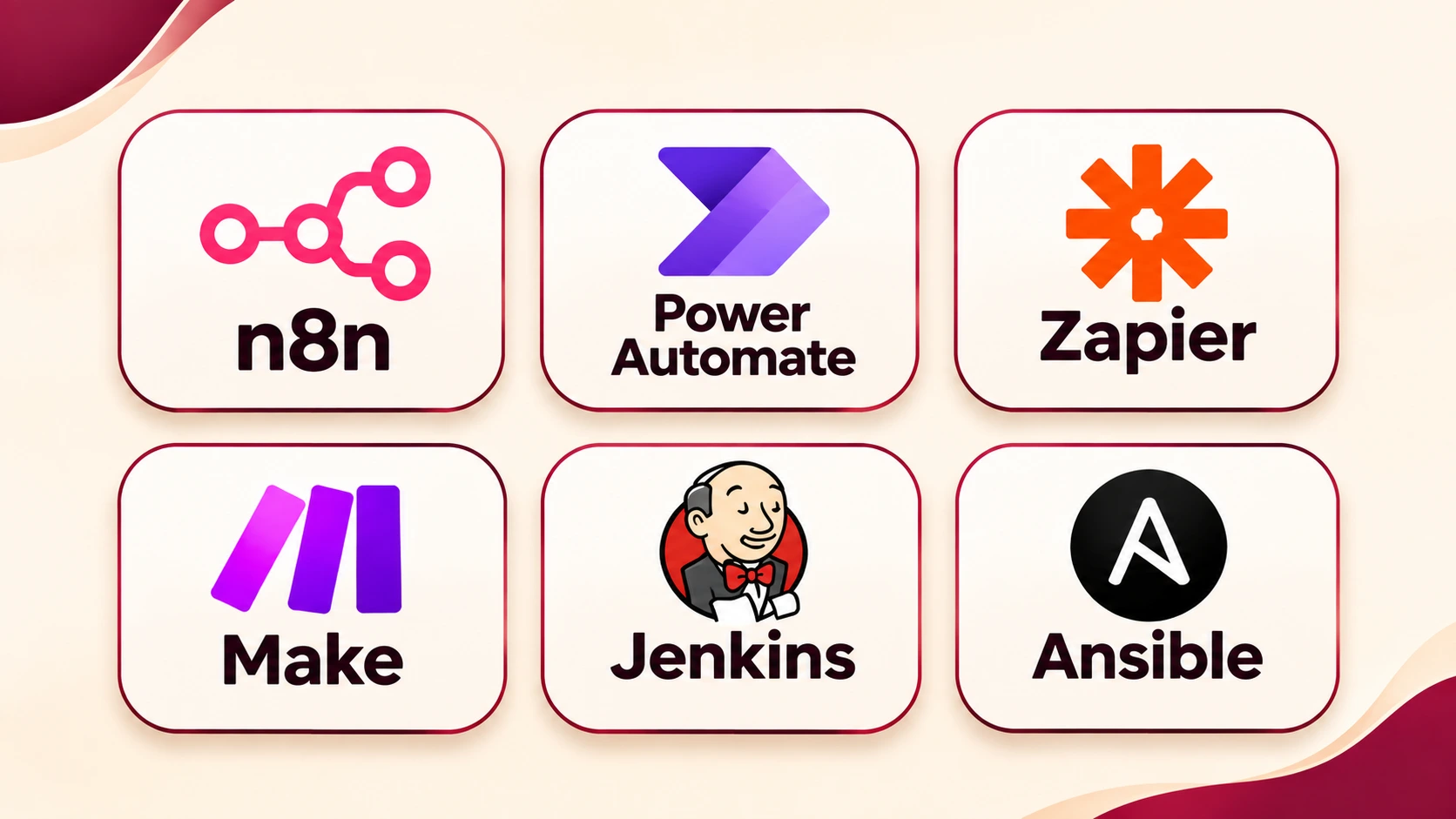
Microsoft Power Automate
Microsoft describes Power Automate as a service to automate repetitive tasks and build automated workflows between apps and services to synchronise files, get notifications and collect data. You can start from a template, build your own or, if your organisation has AI enabled, describe the flow to Copilot. In IT teams it's commonly used for joiner and leaver workflows, approval notifications, form submissions and alerts in Microsoft Teams or email, especially in Microsoft 365 environments. Licensing and which connectors you can use depend on your plan, so check what your organisation has before you design around a connector.
Zapier
Zapier connects supported web applications through a trigger and one or more actions, for example saving a form response to a spreadsheet and sending a notification. It suits light administrative processes between cloud applications and small teams. It's less suited to deep Windows or on-premises management.
n8n
n8n is described by its documentation as a fair-code licensed workflow automation tool. You can use its cloud service, which has a free trial and paid plans, or install it yourself with Docker Compose or on a cloud provider. A self-hosted setup gives control over where data sits, and it also makes you responsible for installing, securing and updating it. It's a good fit when an admin is comfortable with a more technical tool.
All three handle the basics visually. Advanced integrations, API authentication, expressions and complex branching can need technical knowledge, so expect to meet low-code work sooner than with a simple policy tool.
Example: automating employee onboarding
- HR submits a new employee form. This is the trigger, and the form can start the workflow on its own.
- The workflow notifies the IT team. A message in email or Teams with the new joiner's details can be automatic.
- An approval request goes to the manager. The request is automatic, but a person decides, and that stays with a person.
- The IT team receives a task to prepare the laptop and the required access. The task can be created automatically, while building the laptop and granting access should stay with an administrator, or follow a separate, tightly controlled process.
- The relevant team gets a completion notification once IT marks the task done.
The automation handles routing and reminders, which is where most of the delay happens. Anything that creates accounts or grants permissions needs an approval and a record of who approved it.
ITSM automation: tickets and service requests
IT Service Management (ITSM) platforms handle tickets and service requests. ServiceNow and Jira Service Management are two widely used ones. Both are built around rules and workflows, and what's available depends on the product edition and licence, so check the vendor's current documentation for your plan.
- ServiceNow: used for incident and request handling. Typical automation covers categorising and assigning tickets, approval workflows, service-level notifications, escalation rules and service request fulfilment, set up through its visual workflow tools.
- Jira Service Management: used by service desks for request routing. Typical automation uses rules with triggers, conditions and actions, for example assigning a request by type, changing priority and sending notifications or approvals.
Take a software-access request. An employee submits a request in the portal. A rule routes it to the right queue, an approval goes to the line manager and the application owner and, once both approve, a task is assigned to the admin who grants access. Notifications keep the requester informed, and a service-level timer starts if no one acts. A password reset can follow a similar path with an identity check and an approval.
Automation doesn't replace access controls. Every approval should be recorded, and the admin who grants access should still follow your access policy. Keep the audit trail on, so you can show who approved what.
Cloud console automation without writing code
Cloud platforms offer graphical consoles and built-in automation, so an admin can run routine tasks across many servers without writing a script. Both examples below also allow scripting, and some features need it.
AWS Systems Manager
- What it does: AWS describes Systems Manager as a way to view, manage and operate nodes at scale in AWS, on-premises and multicloud environments, from a browser console.
- Common use cases: patching nodes at scale, running commands remotely, connecting to a server without opening inbound ports and automating common administration tasks such as software and patch installations or user management, without bastion hosts or SSH.
- How the console helps: a dashboard shows which nodes are managed and which have outdated operating systems. Runbooks, which AWS calls Automation, run predefined tasks, so you choose one and run it.
- No-code or low-code: running ready-made actions from the console is no-code. Writing your own runbook documents or driving it from the command line is low-code to scripting.
- Limitations: a node must have the SSM Agent installed and be able to reach the service before it appears as managed, and your permissions must allow each action. Check the IAM permissions you give, since commands run on real servers.
Azure Automation
- What it does: Azure Automation runs runbooks on a schedule or in response to alerts. Microsoft lists graphical, PowerShell and Python runbooks, plus schedules, role-based access control, State Configuration for desired configuration and a Hybrid Runbook Worker for running jobs on on-premises machines.
- Common use cases: starting and stopping virtual machines on a schedule, periodic maintenance and responding to alerts.
- No-code or low-code: graphical runbooks are low-code, because you drag in activities but still need to understand what each does. PowerShell and Python runbooks are scripts.
- Current terminology: Azure Automation Update Management was retired on 31 August 2024, and Microsoft points to Azure Update Manager for update management. Don't follow older tutorials that still describe Update Management.
- Limitations: you need an Automation account, and a Basic account includes the first 500 job minutes per subscription free, with charges after that. Most useful runbooks involve scripts.
Running a prepared automation from a console is no-code, and building a new runbook is where scripting starts.
Which task should you automate with which tool?
| IT task | Suitable tool | What can be automated | Coding requirement | Best suited for |
|---|---|---|---|---|
| Windows device configuration | Intune, Group Policy | Settings, security policies and app deployment applied to groups | Usually none for standard settings | Intune for cloud-managed devices, Group Policy for domain-joined PCs |
| Software deployment | Intune, Configuration Manager, RMM tools | Installing and updating applications on many devices | Usually none for standard packages | Large fleets with a standard application list |
| Windows maintenance scheduling | Task Scheduler | Running a program or script at a set time or event | None for the schedule, but the task may be a script | Single machines or small setups |
| Remote patch management | NinjaOne, Atera, ConnectWise | Patch schedules, alerts and monitoring across devices | Policies are visual, custom fixes often use scripts | Teams managing many remote devices |
| Employee onboarding notifications | Power Automate, Zapier, n8n | Forms, notifications and approval routing between apps | Low-code for conditions and integrations | Process steps around IT, not device configuration |
| Ticket assignment | ServiceNow, Jira Service Management | Routing, priority rules, approvals, notifications and escalation | Rule-based; complex cases may need configuration | Service desks with a ticketing platform |
| Cloud patching | AWS Systems Manager | Patching and running commands across managed nodes | None for running ready-made actions | Teams running servers on AWS or hybrid setups |
| Cloud resource workflows | Azure Automation | Scheduled and alert-driven jobs through runbooks | Graphical runbooks are low-code, most use scripts | Azure environments with repeated resource tasks |
The right tool depends on what your organisation already runs, what your licences include, how many devices you manage and your security requirements. An Intune licence you already hold is a better starting point than buying a new tool.
When should a system administrator move from no-code to scripting?
No-code tools are right for standard, repeated tasks. You'll want scripting when you need:
- complex conditional logic, such as "do this only if the user is in these groups and the device is older than that"
- bulk operations across several systems at once
- custom integrations between tools that don't connect out of the box
- advanced error handling, so a failure is caught and reported, not silently ignored
- more control over how a workflow behaves
- reusable automation you can run in several environments
PowerShell is the natural next step for Windows administrators, and Python for cross-platform work. You don't need to become a developer; one small script that solves a real problem at work is a good start. If you're unsure what to learn first, our guide on what a system administrator should learn first helps you choose. When you're ready to go beyond visual tools, read how system administrators can automate tasks with cloud, DevOps and AI tools.
Conclusion
No-code and low-code tools let a system administrator cut repetitive work, apply settings consistently and manage more devices with the same team. You don't need to be a programmer to start: begin with the visual tools and built-in features your organisation already pays for, learn where each one stops and add scripting when a task outgrows it. Match the tool to the task, test before you scale and keep approvals and audit trails switched on.
Build Cloud and Admin Skills in Kannada
If you want to build cloud and infrastructure skills beyond visual tools, MicroDegree's e-learning platform teaches in Kannada, with AWS, Azure, Kubernetes, DevOps and Linux among the skills it covers. You can explore them in one place and decide what to learn next.
FAQs
1. Can system administrators automate tasks without coding?▼
Yes, for standard tasks. Policies in Intune and Group Policy, patch schedules in RMM tools, ticket rules in ITSM platforms and ready-made actions in cloud consoles need no code. Complex or unusual tasks usually need some scripting.
2. What are the best no-code automation tools for IT administrators?▼
It depends on the task. Intune or Group Policy for Windows settings, an RMM tool for patching many devices, Power Automate for notifications and approvals and an ITSM platform for tickets. The comparison table above matches tasks to tools.
3. Can I automate Windows tasks without PowerShell?▼
Yes. Group Policy, Intune, Configuration Manager and Task Scheduler all have graphical interfaces. For advanced or custom tasks you may eventually want PowerShell.
4. Is Microsoft Intune a no-code tool?▼
Mostly. You build and assign policies in the admin center without code. Intune also has an API behind every portal action, so you can automate it with scripts when the portal isn't enough.
5. What is the difference between RMM and ITSM automation?▼
RMM automation works on devices: monitoring, patching and software installs. ITSM automation works on tickets and requests: routing, approvals and service-level alerts. Many teams use both.
6. Can AWS Systems Manager automate tasks without coding?▼
Partly. You can run ready-made actions such as patching or running a command from the console. Building your own runbooks, or driving it from the command line, involves scripting.
7. Is no-code automation enough for a system administrator?▼
For routine, standard work, often yes. As responsibilities grow, you'll meet tasks that need conditions, bulk changes or custom integrations, and scripting becomes valuable.
8. Which automation tool should a beginner learn first?▼
Start with what your organisation already uses: Group Policy or Intune for Windows, or the rules in your ticketing system. Learning one tool well on real tasks beats sampling several.